How to Schedule Mastodon Posts on Any Server (and Send Them to Bluesky Too)
Mastodon’s own apps can’t schedule posts. Here’s how to schedule Mastodon posts on any server, write them the Mastodon way, and cross-post to Bluesky.
Mastodon can publish a post later, but the official web app and the official phone apps don’t show you a button for it. To schedule Mastodon posts you need either a third-party Mastodon app that exposes the feature, or a scheduler that connects to your account on whatever server it lives on. If the same post also belongs on Bluesky, LinkedIn or X, the scheduler is the one that saves you real time.
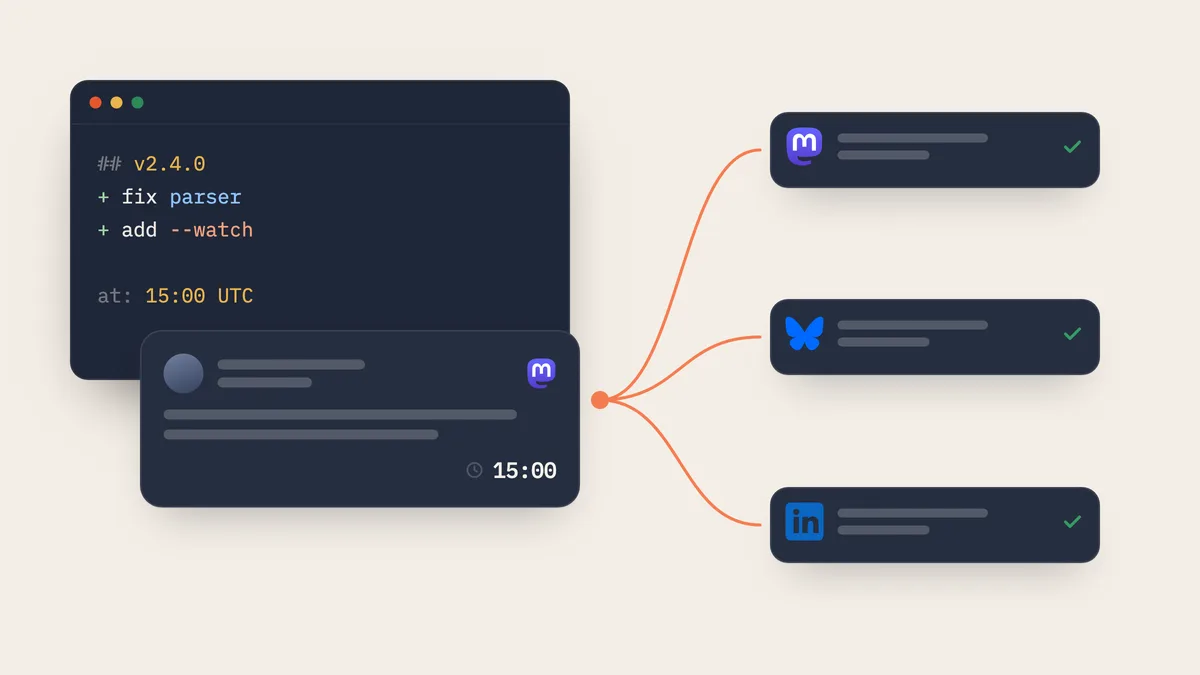
A typical case: you maintain an open-source library and your account is on fosstodon.org. Release notes go out on Tuesday at 15:00 UTC, when both Europe and the US East Coast are at their desks. The same announcement goes to Bluesky and LinkedIn. Without a scheduler, that means three apps, three copies of the text, and posting from wherever you happen to be at 15:00.
Can you schedule posts on Mastodon?
Yes, with a catch. The Mastodon server software accepts a post with a publish time attached, as long as it’s at least five minutes in the future (Mastodon’s API docs). What’s missing is the interface. As the volunteer-run fedi.tips explains in its page on scheduling, the official web interface and apps don’t give you a way to use it, so you go through another app: Tusky, Fedilab or Moshidon on Android, Mona on iPhone, Phanpy or FediPlan on the web.
The same guide points out the catch. A post scheduled this way waits on the server where you created it. Move your account to another server and those queued posts don’t go out.
Three ways to schedule Mastodon posts
| Option | Works on any server | Other networks | Replies in one place | Cost |
|---|---|---|---|---|
| A third-party Mastodon app | Yes | No | Mastodon only | Mostly free |
| Your own script against the API | Yes | Only if you build it | No | Your evenings |
| A social media scheduler with Mastodon | Depends on the tool | Yes | Depends on the tool | Free to paid |
If Mastodon is the only place you post, a good third-party app is enough, and you can stop here. If you’re a developer who likes owning the pipeline, a short script with scheduled_at works too. The rest of this guide is for people who post the same thing in more than one place.
How to schedule a Mastodon post with Shager
Shager publishes to Mastodon alongside YouTube, X, LinkedIn, TikTok, Bluesky, Telegram, Pinterest and Tumblr. Here’s the whole flow:
- Connect your Mastodon account (the next section shows how) and the other accounts you post to.
- Write the post. Mastodon’s default limit is 500 characters, and every link counts as 23 characters however long it really is. Shager counts the same way, so you see the real number while you type.
- Attach up to 4 images, each with its own description, or one video. For a video you can pick a cover image, which Mastodon shows until someone presses play.
- Tick the accounts. If it’s always the same set, save them as a group and pick the group next time.
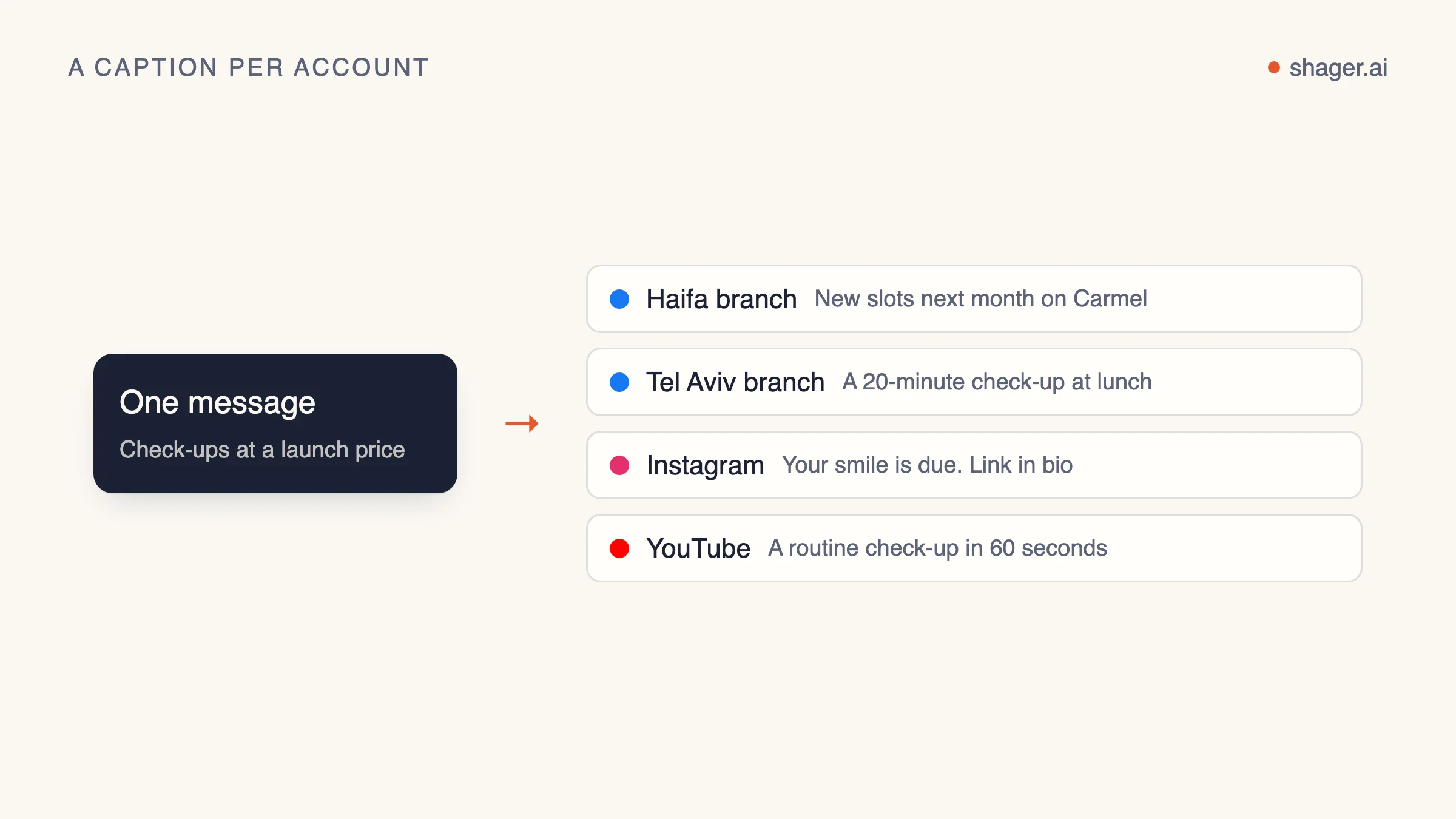
- Click Adapt for each network when the versions should differ. The Mastodon version can keep its hashtags and the long link; the Bluesky one has to fit in 300 characters.
- Set the Mastodon options: who sees the post (Everyone, Quiet public, or Followers only), a content warning, the post’s language, or a poll.
- Pick the day and time, and schedule.
Shager keeps the post on its side and publishes it at the time you chose. If you add a first comment, it goes out on Mastodon as a reply to your own post, which is a tidy place for a changelog link or credits.
For the release-notes case, that’s the Tuesday post written on Monday evening, once, with each network’s version next to the others. You can try it on your own accounts now: sign up, and it’s free during the launch, for up to 31 accounts, with no card.
Connecting an account on any Mastodon server
Mastodon has no single sign-in page, because every server runs its own. So the connection starts with a question:
- In Shager, click to connect Mastodon. A page asks which server your account is on.
- Type the server’s address (mastodon.social) or your full handle (@name@hachyderm.io).
- Shager checks that the address runs Mastodon, or software that works like it. The first time anyone connects from that server, Shager registers itself there automatically. No admin needs to approve anything.
- You land on your own server’s sign-in page. Sign in there and approve the access.
- You’re back in Shager with the account connected.
Shager never sees your password. The access it asks for is narrow: read your profile and your posts, write posts, upload media. If you remove the account in Shager, its access on your server is cancelled too.
Accounts on different servers are fine. Someone with a personal account on mastodon.social and a project account on fosstodon.org connects both, and each counts as one account. If you manage Mastodon for a client, you can send them a connect link so they sign in on their server themselves.
Write for Mastodon, not just to it
Mastodon has its own habits, and a post that ignores them stands out. A few things worth doing on every post:
- Describe your images. On Mastodon image descriptions are expected, not a nice extra. Shager gives every image its own description field.
- Use content warnings as intended. Spoilers, politics, health, sometimes food photos. The warning shows first, and readers tap to see the rest. Shager’s warning field counts toward the 500 characters, as Mastodon’s does.
- Pick Quiet public for routine posts. A quiet public post reaches your followers and anyone who opens your profile, but it stays out of the public timelines and hashtag pages. Good for the third update of the day.
- Write hashtags in CamelCase. #OpenSource reads better than #opensource, including for people using screen readers.
- Set the language. If you post in more than one language, set it per post so people who filter their feeds by language still see you.
Mastodon’s own posting guide covers visibility, content warnings and media descriptions in more detail.
Cross-posting Mastodon, Bluesky, Threads and X
Most people who schedule Mastodon posts also post to Bluesky, and the two fit together well: short text, links that work, an audience that likes replies. Our guide to scheduling Bluesky posts covers that side. Threads is waiting for Meta’s approval in Shager, so only people with early access can connect it until then. X works, with one difference: posts to X come from a monthly allowance in your plan, because X charges per post, and a lot more when the post has a link.
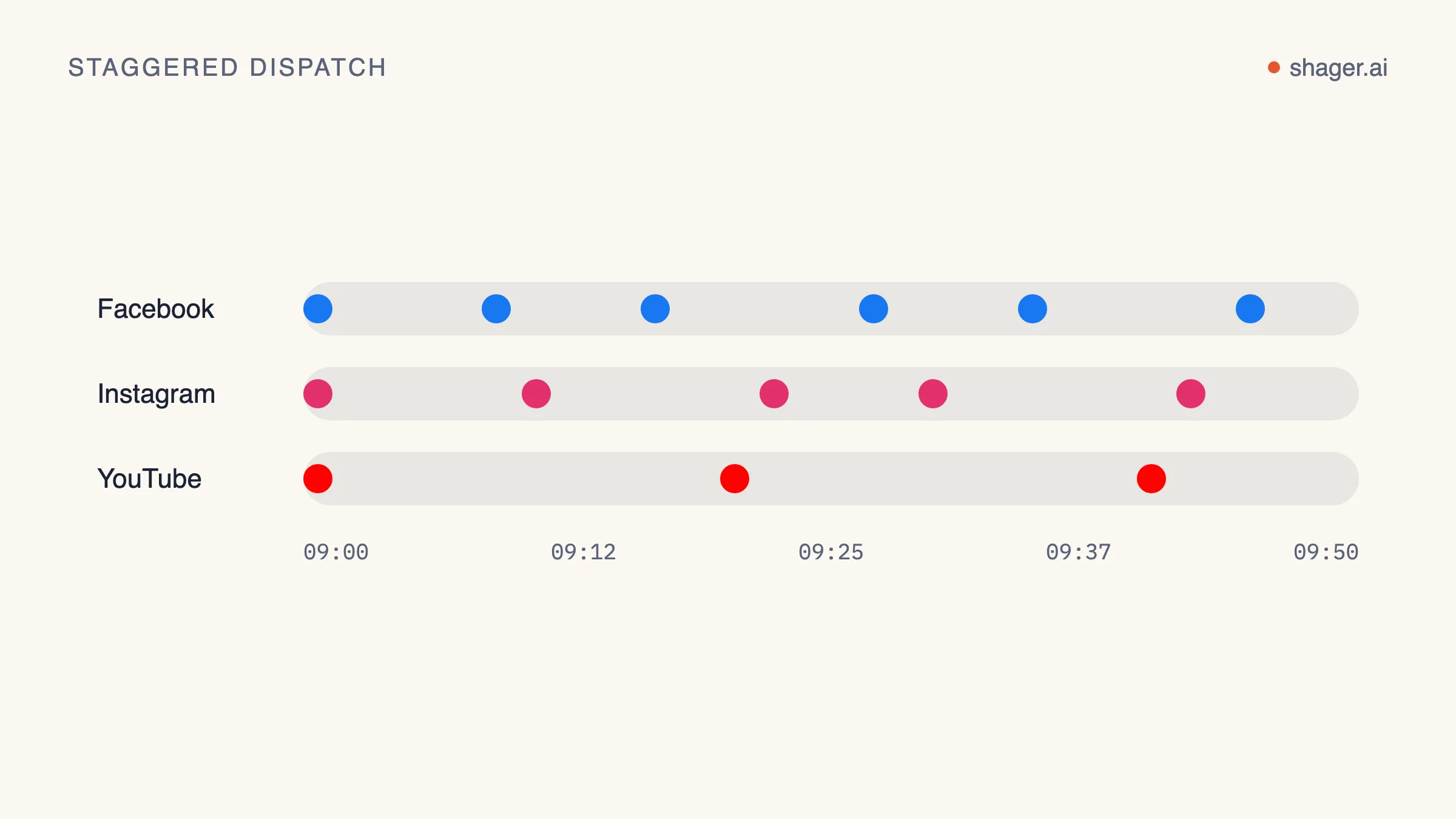
When one post goes to several accounts on the same network, Shager sends them one after another with a random gap (30 to 90 seconds by default), while different networks go out in parallel. If you’re spreading one post across a lot of networks, the guide to posting to all your social media at once covers the wider setup.
After it’s posted: replies and numbers
Replies to your Mastodon posts land on Shager’s Comments page, next to comments from YouTube, Bluesky and the rest, and you can answer from there. For each post you see favourites, boosts and replies, plus your follower count. There are no view counts, because Mastodon doesn’t count views. If you want to know who clicked, a tracked link per account shows it; here’s how per-account tracked links work.
What it costs
Shager is free during the launch, for up to 31 accounts, with no card. Each Mastodon account counts as one account, whatever server it’s on. After the launch, plans start at $15 a month for 6 accounts, then $19 for 11, $39 for 31, $79 for 101 and $199 for 301, with unlimited users on every plan. The pricing page has the details.
FAQ
Does Mastodon have a built-in scheduler?
The server does, the official apps don’t. Mastodon accepts posts with a publish time through its API, and apps such as Tusky, Fedilab, Mona and Phanpy let you use it. The official web interface and the official phone apps have no schedule button.
Does scheduling work if I’m not on mastodon.social?
Yes. Shager connects to any server that runs Mastodon, or software that works like it, and registers itself there the first time someone from that server connects. You type your server’s address or your handle, and sign in on your server’s own page.
Is cross-posting to Mastodon frowned upon?
What people dislike is the automatic mirror: a copy of a tweet with a broken mention and a link back to X. A post written for Mastodon, with image descriptions, sensible hashtags and replies you actually answer, is just a post. Adapting the text per network takes a minute and avoids most of the problem.
Can a script or an AI agent schedule Mastodon posts through Shager?
Yes. The REST API and the MCP server take the same Mastodon options as the app: who sees the post, a content warning, the language and a poll. The agents page shows how to connect Claude, ChatGPT or your own agent.
If Mastodon is your only network, a third-party app with scheduling will do the job. If your post also goes to Bluesky, LinkedIn or YouTube, sign up for Shager, connect your Mastodon server, and schedule the next post everywhere from one place.
Want your agent to work with Shager?
An agent can draft in a sandbox. Publishing requires a human to claim the organization and separately grant the API key publish permission. Per-post approval is required only in workspaces where client approval is enabled.