Connecting Shager to Claude Desktop: Custom Connector With Request Headers, or the mcp-remote Route
Two working ways to connect Claude Desktop to Shager's API-key MCP server: a custom connector with request headers, or mcp-remote in the desktop config file.
7 min read
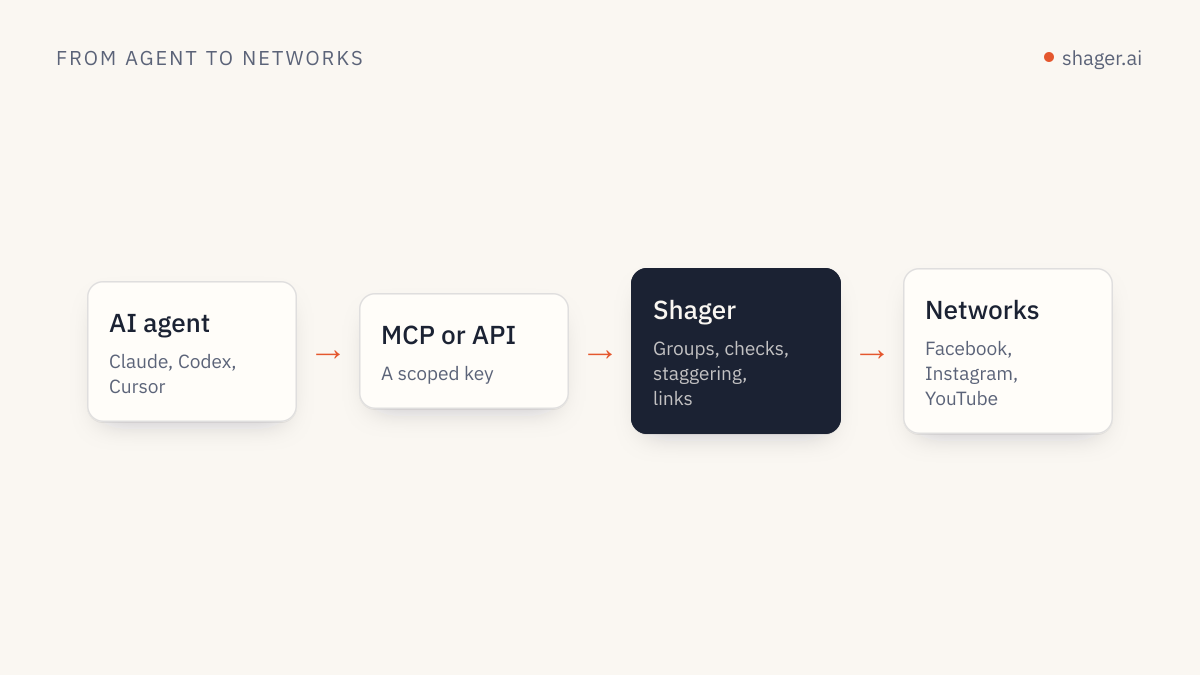
Claude Desktop can use Shager today, but which route works depends on your account. If the Add custom connector dialog shows a Request headers section, add https://app.shager.ai/api/mcp as a custom connector with No sign-in and an authorization header of Bearer shgr_live_.... If it doesn't, bridge the remote server through claude_desktop_config.json with the open source mcp-remote package, which forwards the same header.
Both routes end in the same place: Claude in the desktop app can list your client workspaces, draft multi-account posts and pull per-account clicks. The difference is who holds the key and how much setup each teammate repeats.
Why isn't this a one-click connector?
Shager authenticates MCP clients with an API key in the Authorization header. OAuth sign-in for MCP is coming, but it isn't live yet. Most consumer chat apps were built around OAuth connectors, so header auth is where the friction shows up.
Anthropic's documentation for adding a connector that isn't in the directory is explicit about this case: "If the server uses an API key, choose No sign-in and add the key under Request headers." The same page also says request header authentication "is in beta and available to a limited set of organizations." So the first route is the right one, but you may not have it yet. That's why the second route exists.
Route 1: a custom connector with a request header
Use this if you can see Request headers in the dialog. Custom connectors by URL work on Free, Pro, Max, Team and Enterprise plans according to the same page, with Free limited to one custom connector.
On Free, Pro or Max:
- Open Customize, then Connectors, and click Add custom connector.
- Name it
Shagerand enter the MCP server URLhttps://app.shager.ai/api/mcp. - For Authentication, choose No sign-in.
- Open Request headers, pick
authorizationfrom the list, and enter the valueBearer shgr_live_your_key_here. - Mark the header Required, then click Add.
Step 4 is where most people slip. The docs state that Claude "sends the value exactly as you enter it. It doesn't add an authentication scheme or any other prefix." If you paste only the key, Shager receives Authorization: shgr_live_... and returns 401. Include the word Bearer and the space.
On Team and Enterprise, an Owner adds the connector under Organization settings, then Connectors, and members connect from their own Customize page. Be careful with that pattern for Shager. A request header is one shared credential for everyone in the org, which the Anthropic page says suits "a service account" rather than per-person sign-in. With one shared Shager key, the audit log at https://app.shager.ai/dashboard/agents attributes every call to that single key. If you need per-person attribution, use Route 2 with individual keys until Shager's OAuth ships.
Also note you can't edit headers later. To rotate the key, remove the connector and add it again.
Route 2: mcp-remote in claude_desktop_config.json
The desktop config file is for local servers that Claude Desktop launches as processes. Anthropic's help article on custom connectors describes those local servers as "a separate mechanism" from remote connectors, and a plain url entry there isn't how Desktop reaches a remote server.
The workaround is mcp-remote, an open source package that runs locally over stdio and forwards requests to a remote MCP server, with custom headers. It needs Node.js installed.
Open the config through Settings, then Developer, then Edit Config. The MCP quickstart for local servers gives the paths: ~/Library/Application Support/Claude/claude_desktop_config.json on macOS and %APPDATA%\Claude\claude_desktop_config.json on Windows.
{
  "mcpServers": {
    "shager": {
      "command": "npx",
      "args": [
        "-y",
        "mcp-remote",
        "https://app.shager.ai/api/mcp",
        "--header",
        "Authorization:${SHAGER_AUTH_HEADER}"
      ],
      "env": {
        "SHAGER_AUTH_HEADER": "Bearer shgr_live_your_key_here"
      }
    }
  }
}
The odd-looking Authorization:${SHAGER_AUTH_HEADER} with no space after the colon is deliberate. The mcp-remote README warns that Claude Desktop on Windows (and some other clients) doesn't escape spaces inside args, so the space lives in the environment variable instead. This form works on macOS too, so use it everywhere and stop thinking about it.
If you'd rather not keep the key in the config JSON, mcp-remote also accepts --header-file pointing at a file with one Name: value per line:
Authorization: Bearer shgr_live_your_key_here
Quit Claude Desktop completely and reopen it. The quickstart says the app must restart to load new config. Then open the connectors menu from the chat input and check that shager is listed with its tools.
If it doesn't connect
Logs live in ~/Library/Logs/Claude on macOS (%APPDATA%\Claude\logs on Windows). mcp.log covers connection failures, and mcp-server-shager.log holds mcp-remote's own output. A 401 in there means the header value is wrong. A command not found for npx means Node isn't on the PATH that Claude Desktop sees, which is common when Node was installed through a version manager. Point command at the absolute path of npx in that case.
Which route should you pick?
| Custom connector with request header | mcp-remote in config | |
|---|---|---|
| Availability | Beta, limited organizations | Any Claude Desktop install with Node |
| Who holds the key | Stored by Claude, not shown again | Your local config or a header file |
| Works on claude.ai in the browser | Yes, it's an account connector | No, desktop only |
| Per-person keys on Team plans | No, one shared header | Yes, each person configures their own |
| Rotating the key | Remove and re-add the connector | Edit the file, restart |
For a solo consultant, Route 1 is cleaner if you have it. For an agency with five people touching client accounts, Route 2 with individual keys keeps the audit trail honest.
A first prompt that proves it works
Using Shager: who am I, which workspaces do I have, and for the workspace
"Harbor Fitness" list the connected channels by network and status.
Then try a draft:
Create a draft post in "Harbor Fitness" to every active Instagram and Facebook
channel. Caption: announce the new 6am class. Write a different caption per
channel using the location in the channel name. cta_url
https://harborfitness.example/6am, campaign "6am-launch". Don't schedule it.
That second prompt uses create_post with per_channel captions and a tracked cta_url, which gives each account its own short link with utm_content set to the account. You'll see the draft in Shager, where a human or the client approval link can take it from there. Our piece on client approval workflows explains how agencies tend to wire that step.
Keep the key scoped
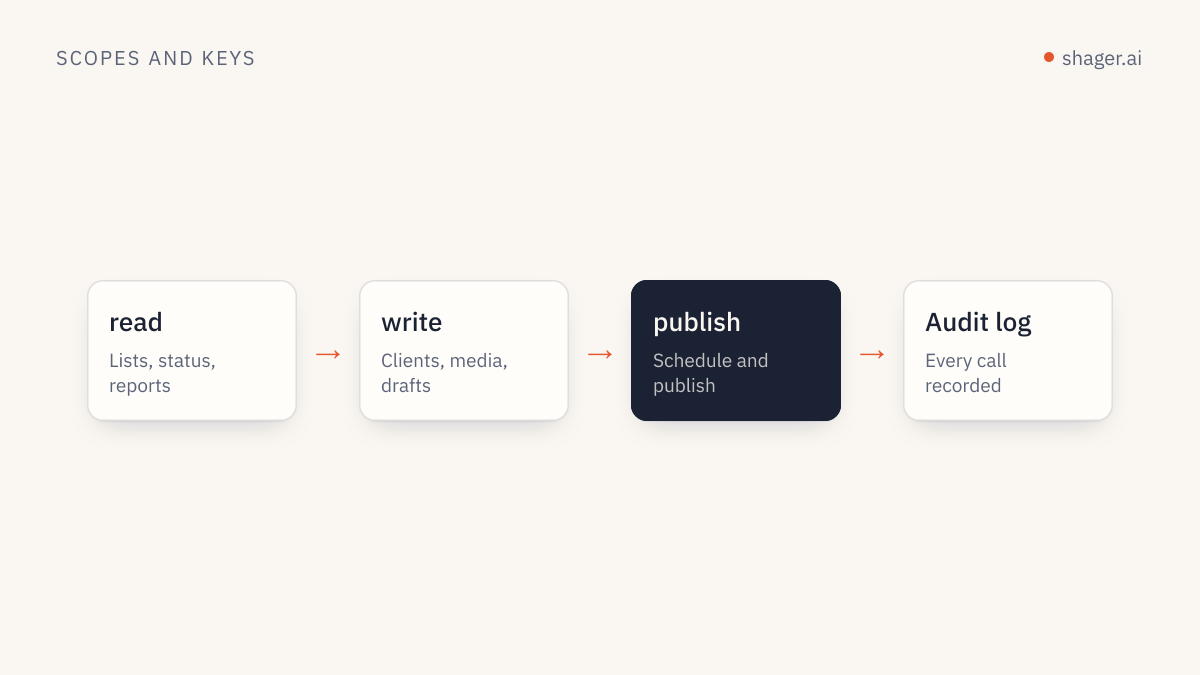
Desktop chat is where people experiment, so give this key read and write only. Without publish, Shager refuses schedule_post and any create_post that includes schedule_at, no matter what is typed in chat. Create a separate key with publish for the scripted routine that actually ships posts, at https://app.shager.ai/dashboard/agents.
FAQ
Can I just paste a url entry into claude_desktop_config.json?
That file launches local servers as processes, and Anthropic documents remote servers as a separate mechanism through connectors. Use mcp-remote as the local process that forwards to the remote URL, or use a custom connector if your account has request headers.
Will this get simpler?
Yes. OAuth sign-in for Shager's MCP server is coming. Once it ships, adding https://app.shager.ai/api/mcp as a custom connector with a normal sign-in will be the simplest path on every plan, each person will connect with their own account, and the header workarounds become optional.
Does the same setup work for Claude Code?
Claude Code supports header auth natively with claude mcp add --transport http and --header, so it needs neither workaround. The steps are in connecting Shager to Claude Code.
Next step
Once Desktop can call Shager, the useful habit is to stop typing long prompts and package them as a skill. If you're on the API rather than a chat app, start with the REST API quickstart and the OpenAPI document, which describe the exact same operations the connector exposes.